

Load Balancers
flex.plane provides Layer 7 load balancers that distribute traffic across multiple VMs. Each load balancer gets a dedicated endpoint, supports TLS termination, and can route traffic based on URL path prefixes.
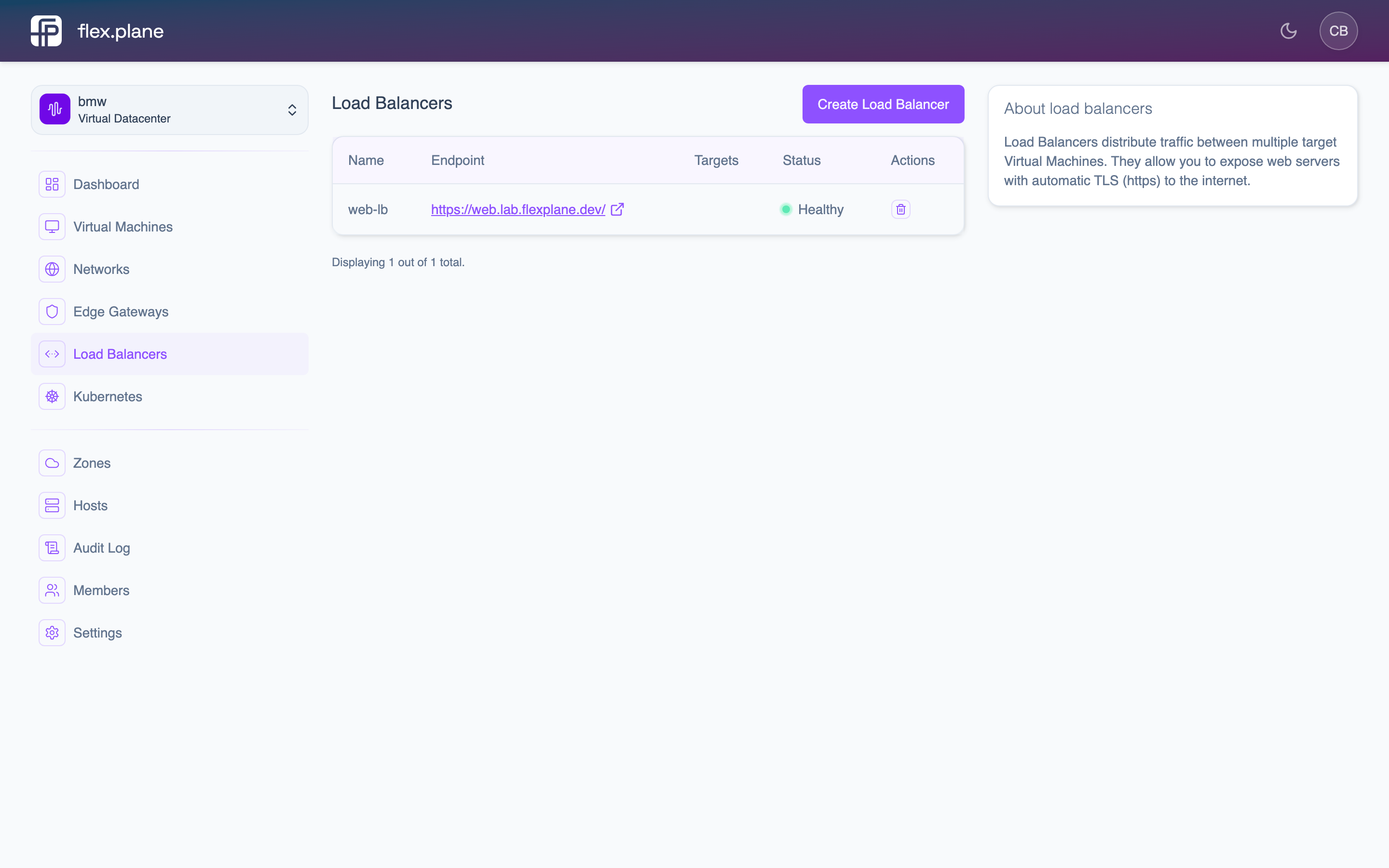 The Load Balancers page shows all load balancers with their endpoints, target VMs, and health status.
Create a load balancer
A load balancer requires a name, a host (the external hostname clients connect to), target VMs, at least one port rule, and the network it lives on.
- Navigate to Load Balancers in the sidebar.
- Click Create Load Balancer.
- Fill in the name, host, network, and select target VMs.
- Add port rules and optional path routes.
- Configure TLS settings.
- Click Create.
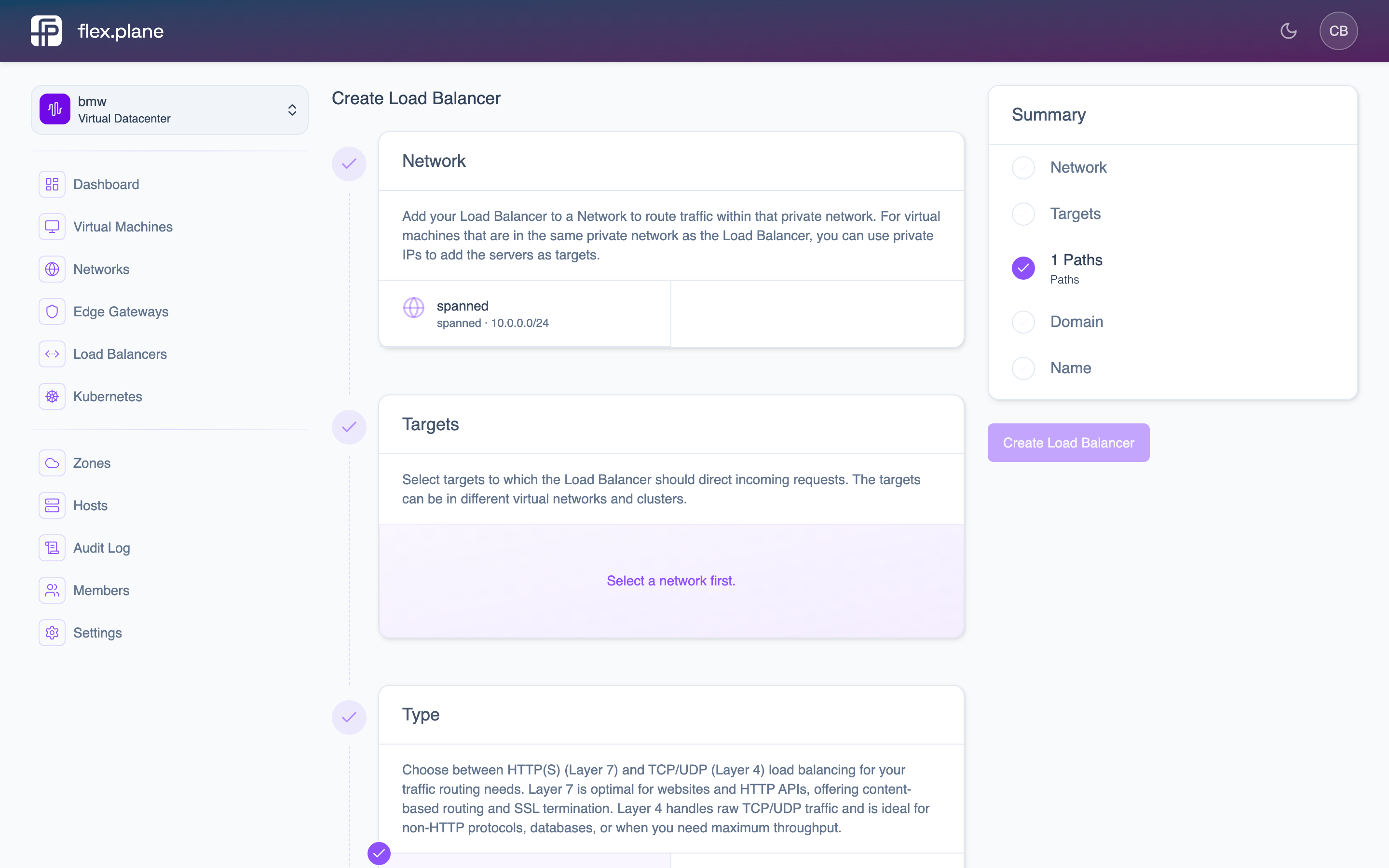 The creation form walks you through configuring the load balancer name, hostname, network, target VMs, port rules, path routes, and TLS settings.
Configure port rules
Port rules define how the load balancer maps incoming ports to target ports on your VMs. Each rule specifies:
| Field | Description |
|---|---|
protocol | The transport protocol. Currently supports TCP. |
port | The port the load balancer listens on (1--65535). |
targetPort | The port on the target VMs to forward traffic to (1--65535). |
You can define multiple rules to expose different services on the same load balancer. For example, port 443 for HTTPS and port 8080 for a management interface.
Configure path routes
Path routes let you direct traffic to different target ports based on the URL path prefix. This is useful when a single hostname serves multiple backend services.
| Field | Description |
|---|---|
pathPrefix | The URL path prefix to match (e.g., /api). |
targetPort | The port on the target VMs for this path. |
Path routes are evaluated in order. The first matching prefix wins. Requests that do not match any path route fall through to the default port rules.
For example, with paths configured for /api (port 8081) and /static (port 8082):
app.example.com/api/usersroutes to port 8081app.example.com/static/logo.pngroutes to port 8082app.example.com/loginroutes to the default target port
Enable TLS
TLS termination is handled at the load balancer, so your backend VMs do not need to manage certificates.
| Option | Description |
|---|---|
enabled | Set to true to enable TLS on the load balancer. |
passthrough | Set to true to pass encrypted traffic directly to backends without terminating TLS at the load balancer. |
When passthrough is false (the default), the load balancer terminates TLS and forwards plain HTTP to the target VMs. When passthrough is true, the load balancer forwards the raw TLS connection to the backend, which is useful when your VMs need to handle their own certificates.
Monitor health
Every load balancer reports its health status. Check the Load Balancers page to see the current state of each load balancer and its targets.
The status is one of:
| Status | Meaning |
|---|---|
Healthy | All target VMs are reachable and responding. |
Degraded | One or more targets are unreachable, but the load balancer is still serving traffic from healthy targets. |
When a load balancer is Degraded, the detail view explains which targets are unavailable. Check that the affected VMs are running and that the target ports are open and listening.
To delete a load balancer, click the delete action from the load balancer list.