

Network Interfaces
Each VM can have up to 4 network interfaces, each connected to a different virtual network. You can add and remove network connections after the VM is created.
Connect to a network
To attach a new network interface to a VM:
- Navigate to the VM's detail page and open the Networks tab.
- Click Connect Network.
- Select the target network from the dropdown.
- Optionally enter a static IP address. If you leave it blank, flex.plane automatically assigns the next available address.
- Click Connect.
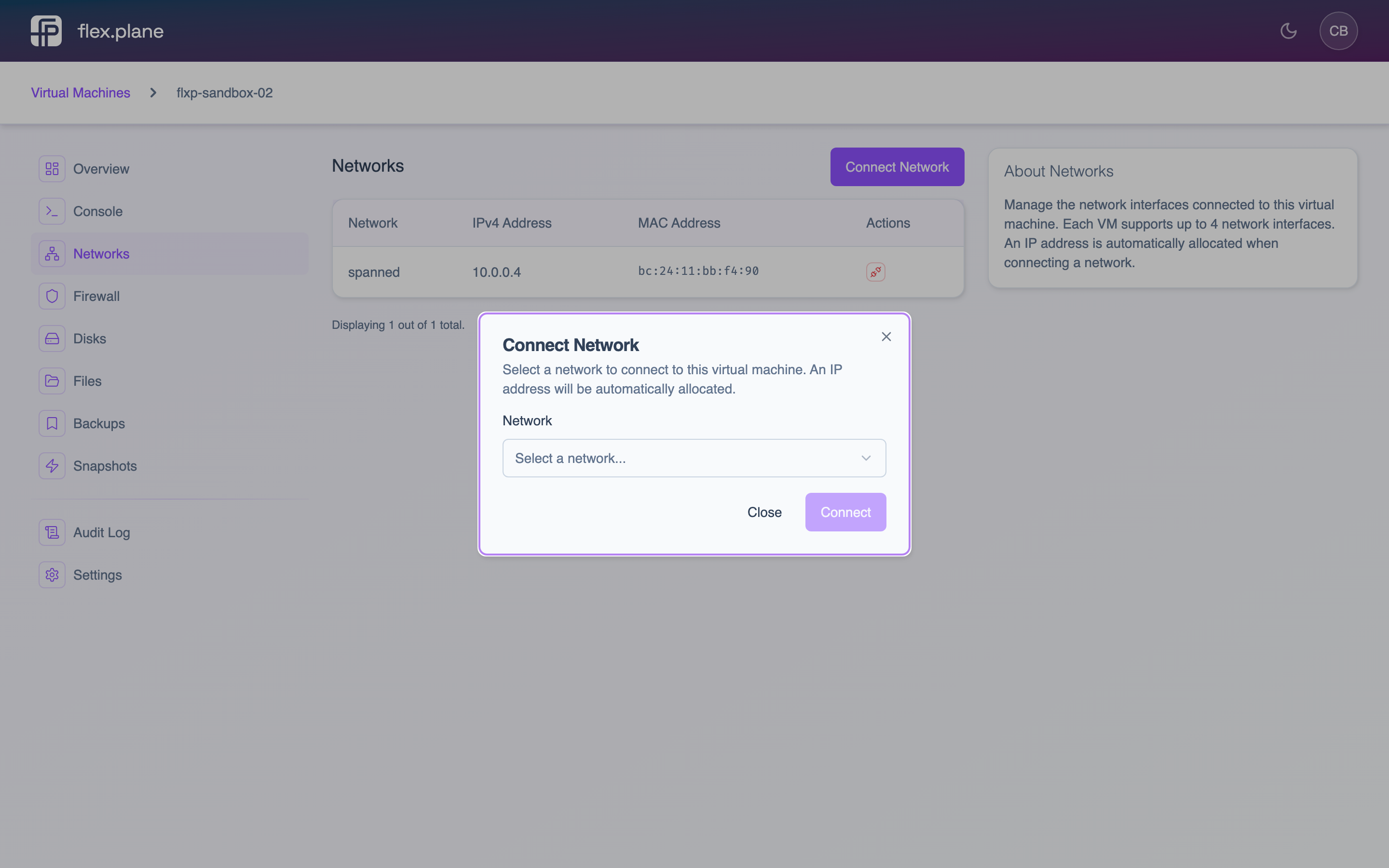 The connect network form lets you choose a network and optionally specify a static IP address.
Disconnect from a network
To remove a network interface:
- Navigate to the VM's Networks tab.
- Find the interface you want to remove.
- Click the disconnect action.
The IP address is released and becomes available for other VMs.
Manage multiple interfaces
VMs support up to 4 network interfaces (slots 0 through 3). This lets you build multi-homed configurations, for example a VM with a frontend network for web traffic and a backend network for database connections.
The Networks tab shows all connected interfaces with their network name, assigned IP address, and MAC address.
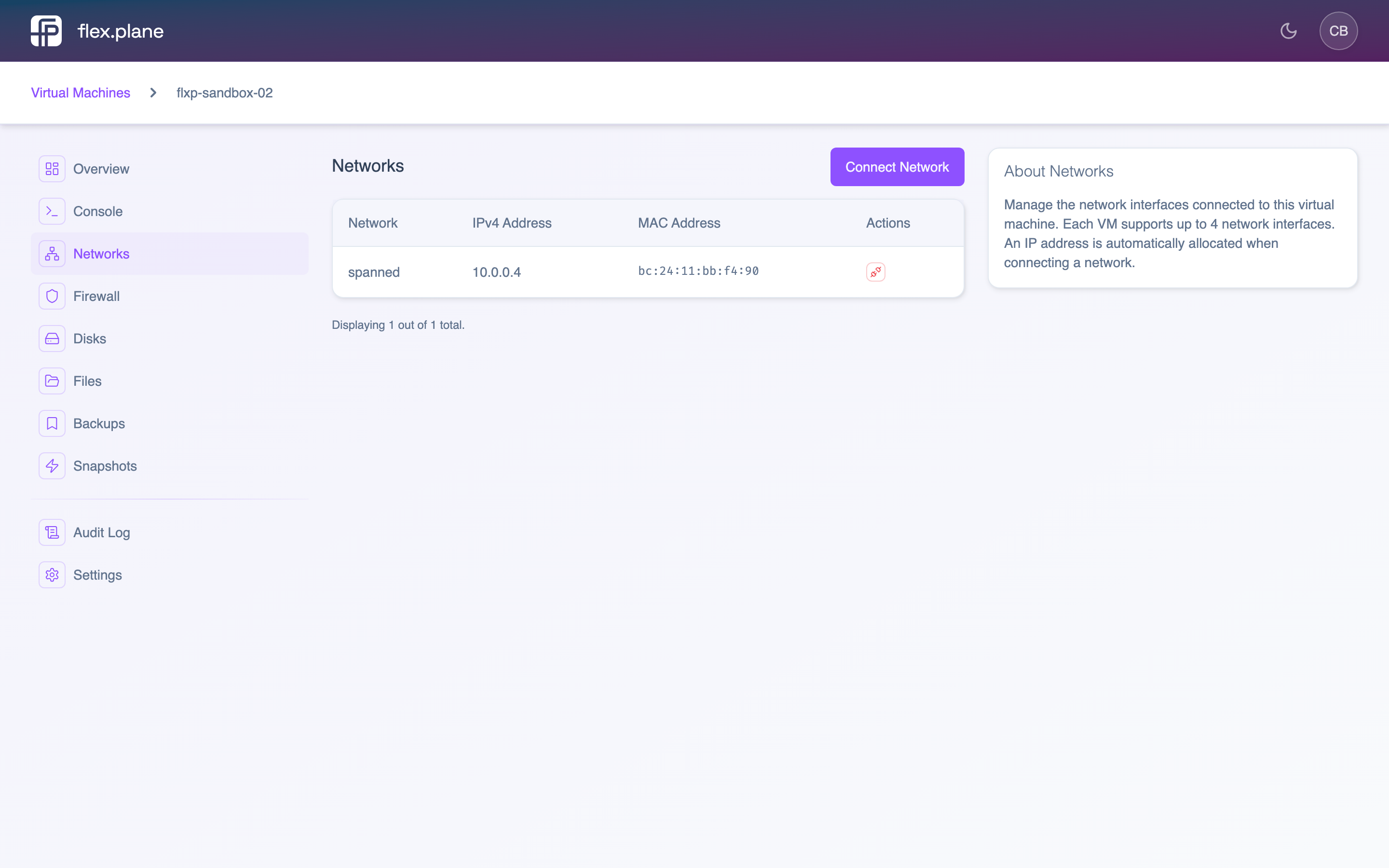 The Networks tab displays each connected interface with its network, IP address, and MAC address.