

Backups and Snapshots
flex.plane offers two complementary data protection mechanisms: backups and snapshots. They serve different purposes and have different trade-offs.
Backups are full exports of a VM's disk data to dedicated backup storage. They are independent of the VM and survive even if the VM is deleted. Use backups for disaster recovery and long-term retention.
Snapshots are point-in-time captures of a VM's disk and memory state. They are stored alongside the VM on the same storage and are fast to create and roll back. Use snapshots for quick undo points before risky changes.
Create a backup
- Navigate to the VM's detail page and open the Backups tab.
- Click Create Backup.
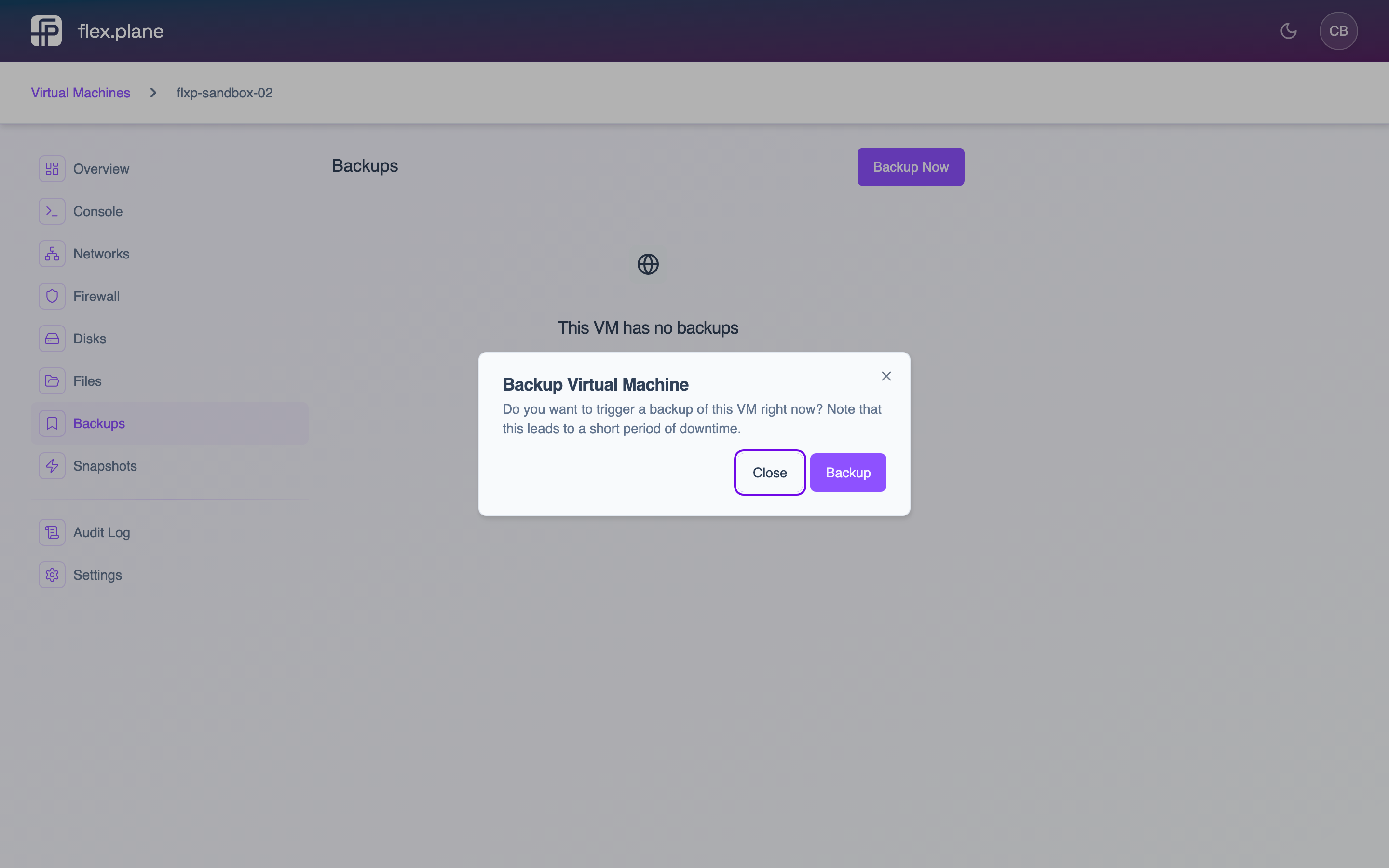 Trigger a full backup of the VM. The backup runs in the background while the VM continues running.
Once complete, the backup appears in the VM's backup list.
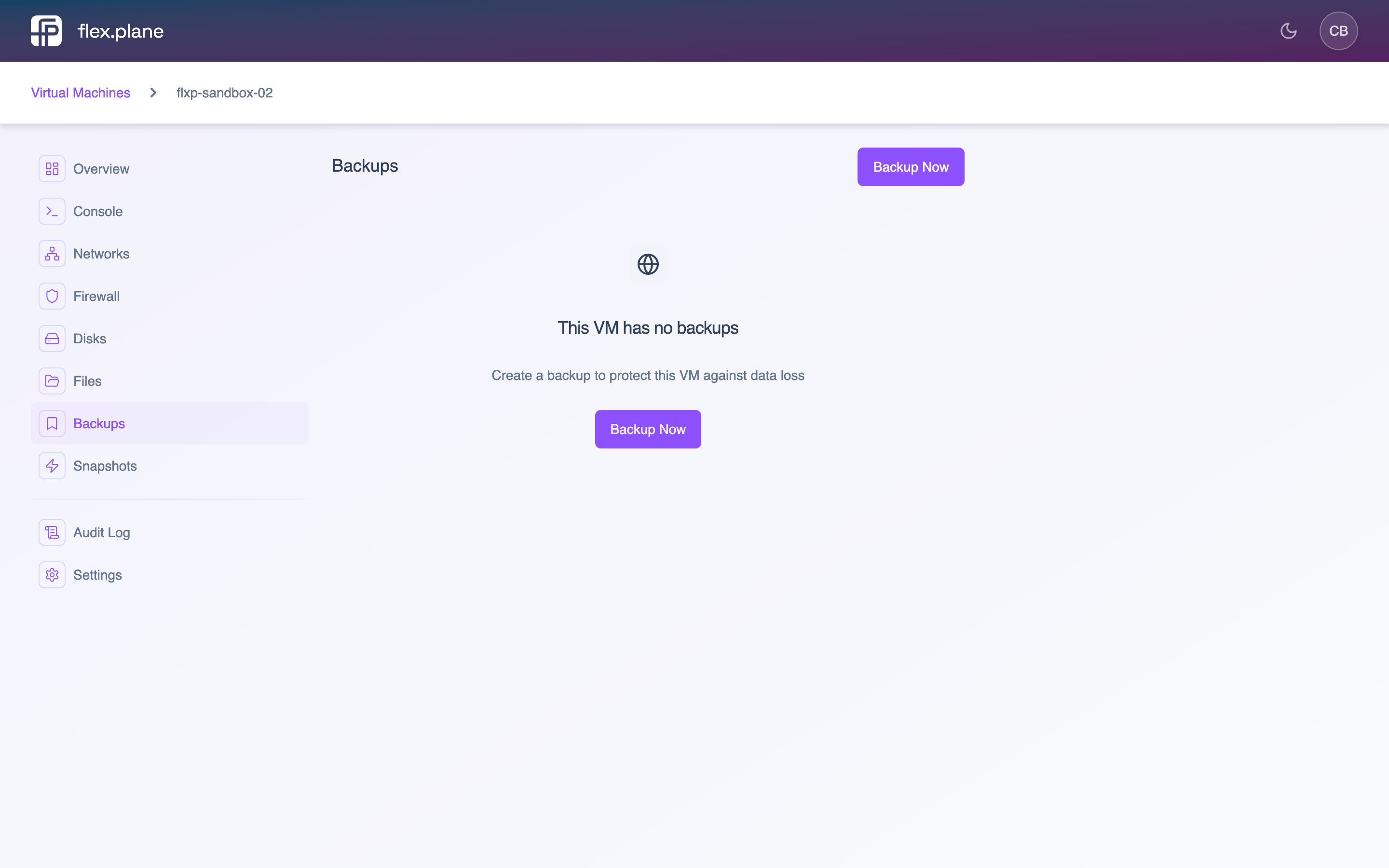 The Backups tab lists all backups for this VM with their creation date and size.
Restore from a backup
To restore a VM to the state captured in a backup, find the backup in the list and click the Restore action. The portal asks for confirmation before proceeding.
Delete a backup
To remove a backup, find it in the backup list and click the delete action.
Take a snapshot
- Navigate to the VM's detail page and open the Snapshots tab.
- Click Take Snapshot.
- Enter a description (e.g. "Before kernel upgrade").
- Click Create.
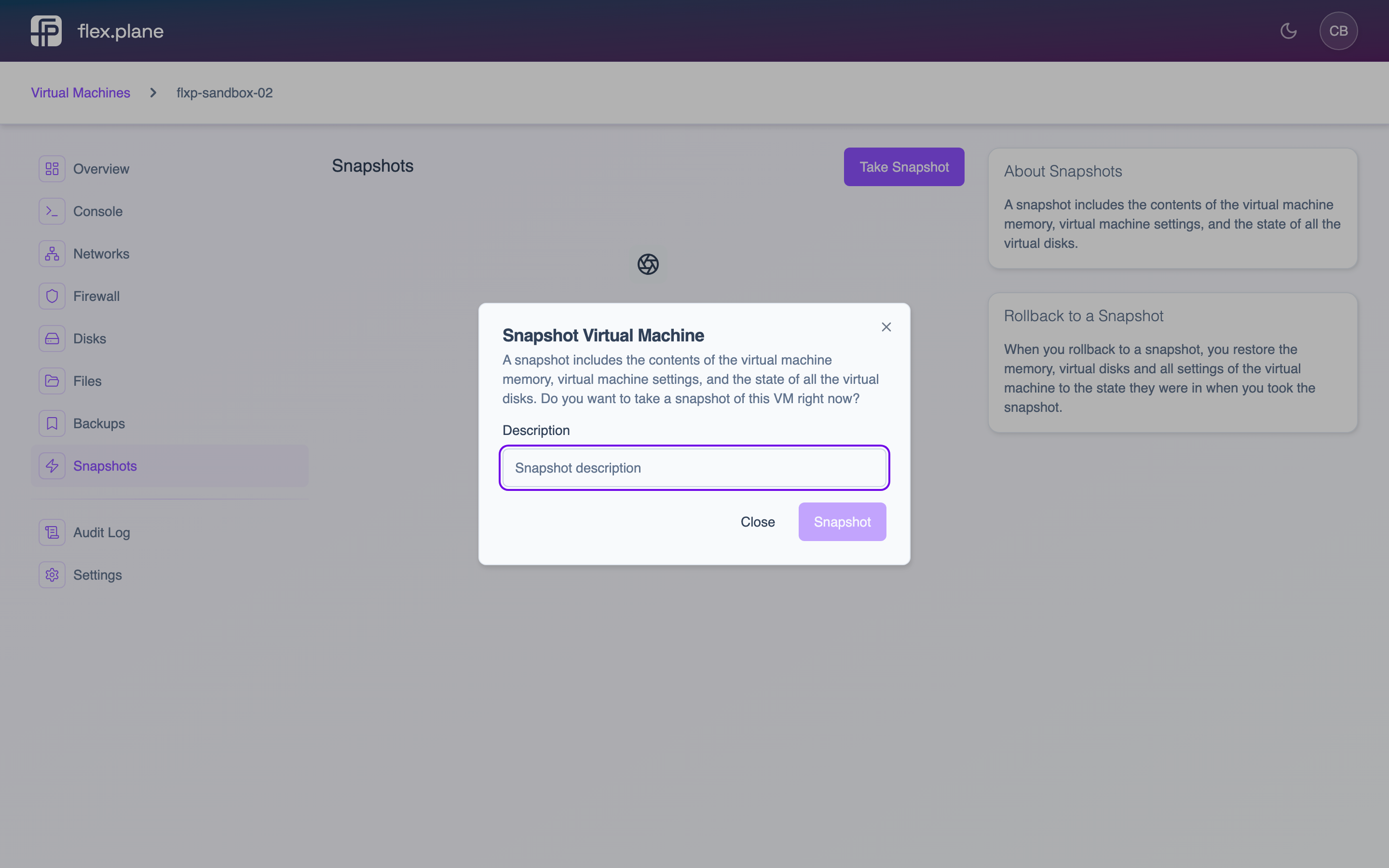 The snapshot form lets you add a description to identify the snapshot later.
Snapshots capture the VM's disk state (and memory state if the VM is running). They are fast to create because they use copy-on-write. Only changes after the snapshot point consume additional storage.
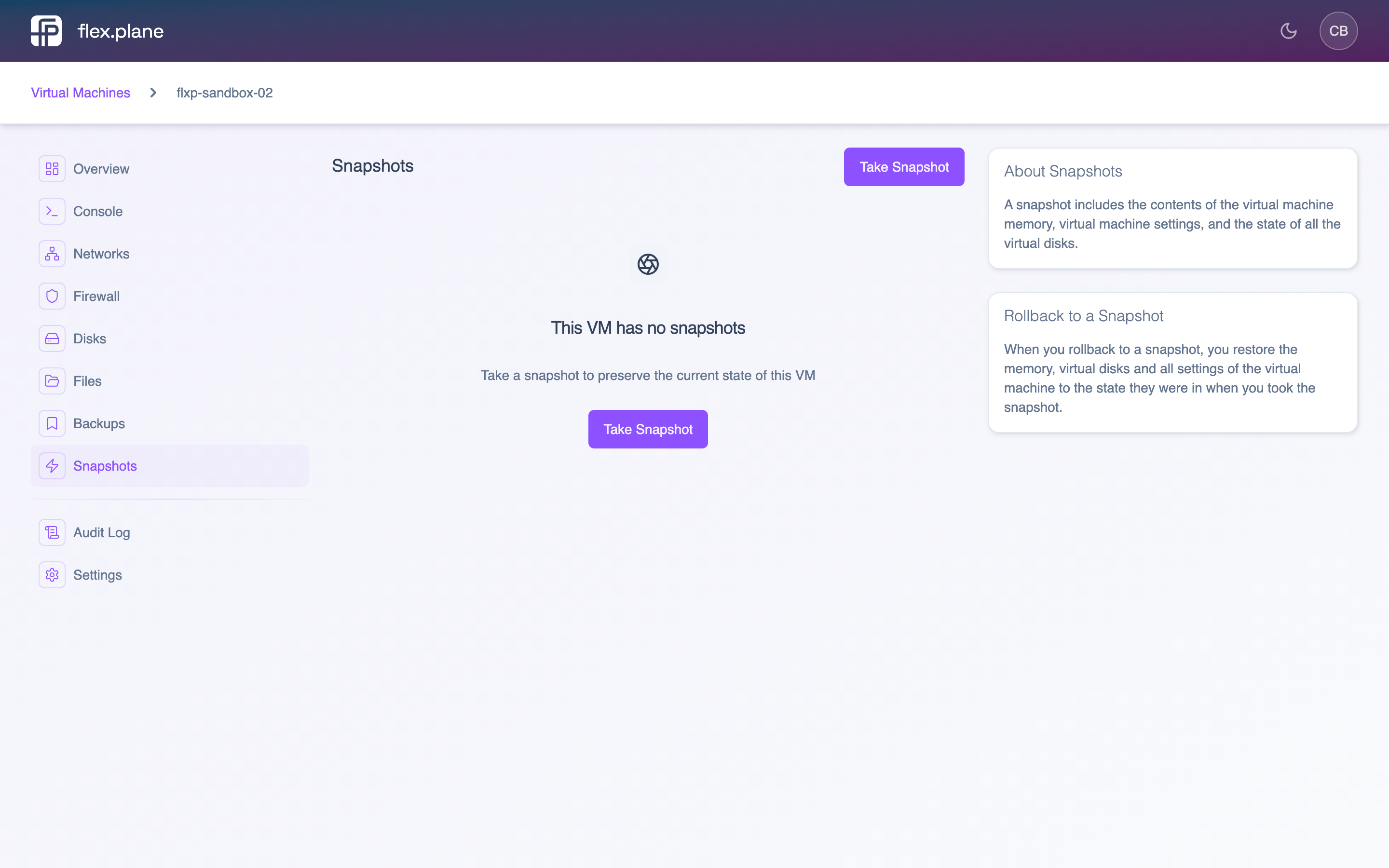 The Snapshots tab displays all snapshots for this VM. Snapshots form a tree structure based on their parent relationships.
Roll back to a snapshot
To revert a VM to a snapshot, find the snapshot in the list and click the Rollback action. The VM's disks (and memory, if it was a running snapshot) are restored to the exact state at the time the snapshot was taken.
Delete a snapshot
To remove a snapshot, find it in the snapshot list and click the delete action. Deleting a snapshot merges its changes into the parent, so you do not lose any data. You just lose the ability to roll back to that specific point in time.