

VM Firewall
Each VM has its own firewall with configurable inbound and outbound rules. You control which traffic is allowed, dropped, or rejected on a per-VM basis.
Enable the firewall
Before any rules take effect, you need to enable the firewall for the VM:
- Navigate to the VM's detail page and open the Firewall tab.
- Toggle the firewall to Enabled.
The firewall settings show the current state, including the default policies for inbound (policyIn) and outbound (policyOut) traffic. Default policies determine what happens to traffic that does not match any explicit rule.
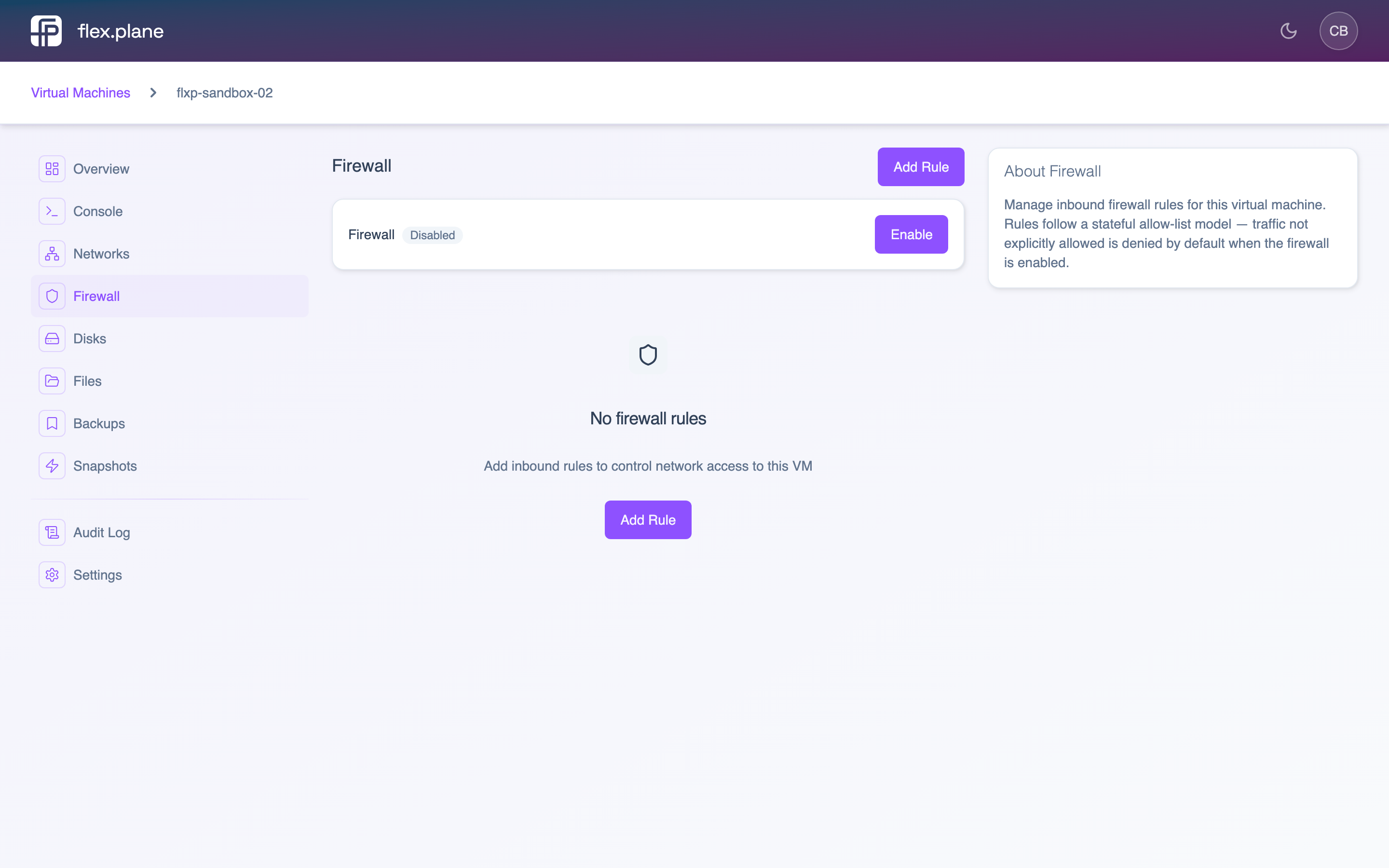 The Firewall tab shows the current firewall state, default policies, and all configured rules.
DROP inbound policy will block all incoming traffic that is not explicitly allowed by a rule. Make sure you have an SSH allow rule in place before enabling the firewall, or you may lock yourself out.Add firewall rules
To create a new rule:
- On the Firewall tab, click Add Rule.
- Fill in the rule parameters.
- Click Create.
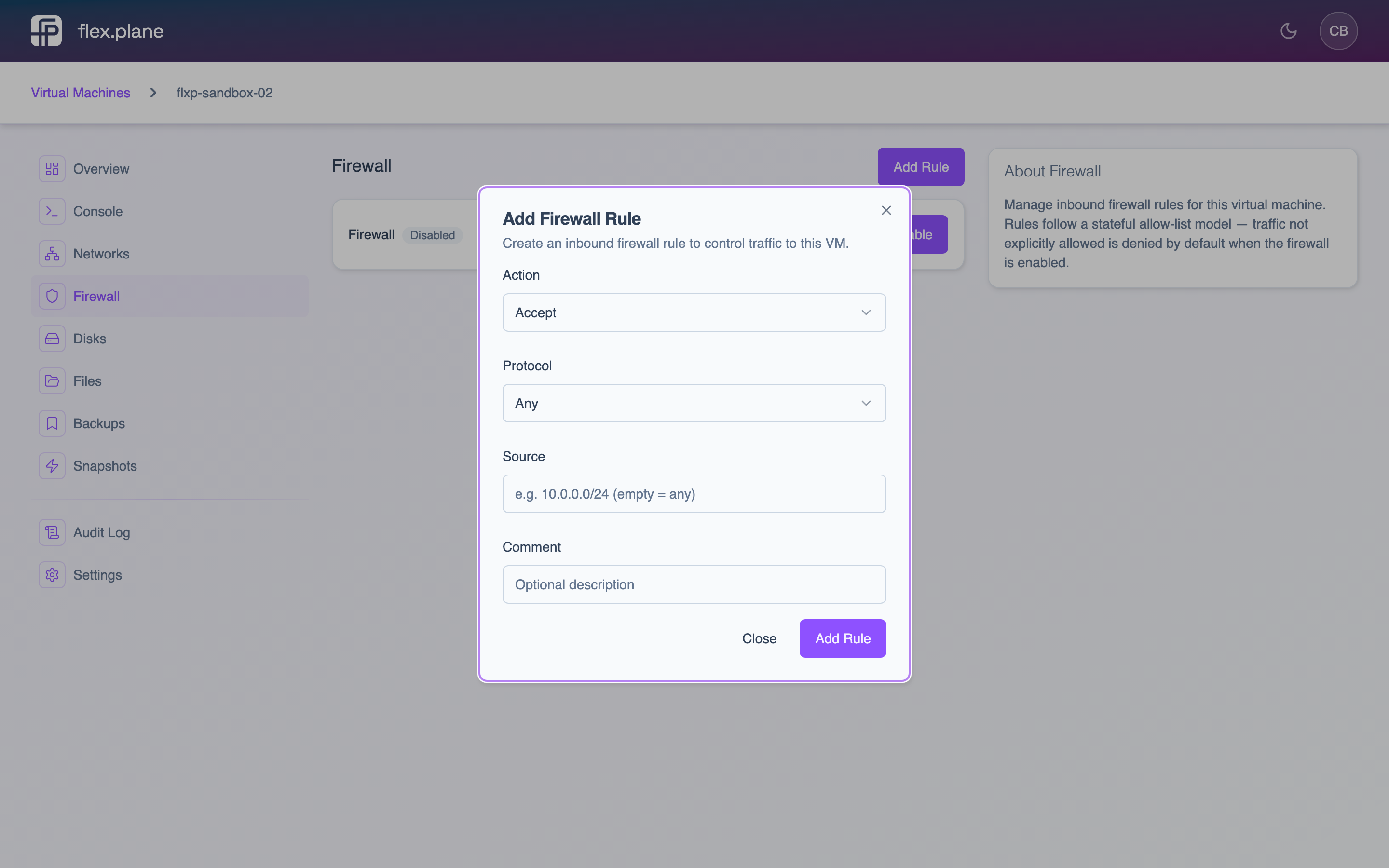 The firewall rule form lets you define action, direction, protocol, port, source, and a comment.
Rule parameters
| Parameter | Description | Required |
|---|---|---|
action | ACCEPT, DROP, or REJECT | Yes |
direction | IN (inbound) or OUT (outbound) | No |
protocol | TCP, UDP, or ICMP | No |
dport | Destination port or port range (e.g. "80", "80,443", "1024:2048") | No |
source | Source IP or CIDR (e.g. "10.0.0.0/24") | No |
comment | Human-readable description of the rule | No |
Common rule examples
- Allow SSH: action
ACCEPT, directionIN, protocolTCP, port22 - Allow HTTP/HTTPS: action
ACCEPT, directionIN, protocolTCP, port80,443 - Allow web from specific subnet: same as above with source
10.0.0.0/24 - Block outbound SMTP: action
DROP, directionOUT, protocolTCP, port25
Delete firewall rules
To remove a rule, find it in the rule list on the Firewall tab and click the delete action. The remaining rules shift positions after deletion.
DROP, you will lose SSH access to the VM.